ChatGPT isn’t just for text. With the right techniques, you can use ChatGPT to generate images by creating high-quality prompts for AI image generators like DALL·E, MidJourney, and Stable Diffusion.
In this guide, we’ll show you how to write prompts in ChatGPT that produce stunning visuals, step by step.
Whether you’re a beginner or a digital artist, this method saves time, boosts creativity, and makes your AI-generated images look professional.
What You Need to Use ChatGPT for Image Generation
Before you start, ensure you have:
- Access to ChatGPT (any version that can generate text)
- An AI image generator (DALL·E, MidJourney, Stable Diffusion, Leonardo AI)
- Basic idea of the image you want (subject, style, mood)
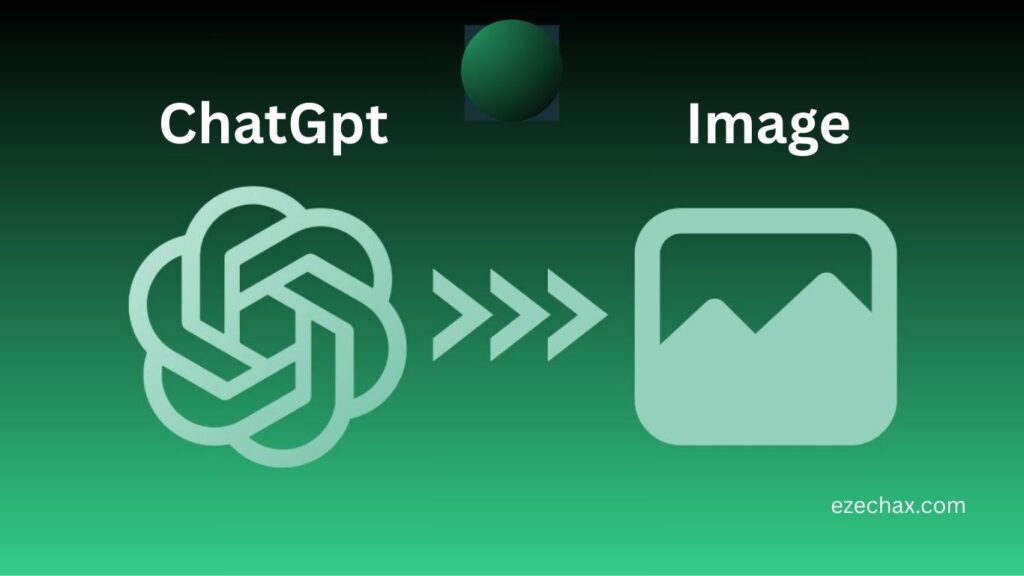
ChatGPT itself doesn’t generate images — it creates detailed prompts that you can copy into an AI image generator.
Why Using ChatGPT Improves AI Image Results
AI image generators respond best to well-structured prompts. ChatGPT helps you:
- Add descriptive details like lighting, mood, and perspective
- Suggest art styles (e.g., digital painting, watercolor, cinematic)
- Reduce trial-and-error
- Make images more realistic or artistic
In short, ChatGPT acts as your prompt engineer.
Step 1: Define Your Image Idea
Start by explaining your concept clearly. Answer:
- What is the subject?
- What style do you want? (digital, cartoon, realistic)
- What mood or atmosphere should the image convey?
- Are there special details like lighting, angle, or color palette?
Example Input to ChatGPT:
I want to create an image of a futuristic city at sunset, cyberpunk style, with flying cars and neon lights.
Step 2: Ask ChatGPT to Create the Prompt
Once your idea is clear, ask ChatGPT to write an AI-ready prompt.
Example Prompt Request:
“ChatGPT, write a detailed prompt for DALL·E to generate a cyberpunk futuristic city at sunset with neon lights, flying cars, and a cinematic atmosphere.”
ChatGPT Output Example:
“A cinematic digital painting of a cyberpunk futuristic city at sunset, glowing neon lights reflecting off wet streets, flying cars in the sky, wide-angle perspective, highly detailed, atmospheric depth, cinematic lighting, rich color palette.”
Notice how ChatGPT organizes the details into a ready-to-use image prompt.
Step 3: Copy the Prompt into an AI Image Generator
Paste the ChatGPT-generated prompt into your AI tool:
- DALL·E: Paste directly into the text input
- MidJourney: Use
/imaginecommand and paste prompt - Stable Diffusion: Paste into the prompt field, adjust settings
The image generator now has a well-structured prompt to produce high-quality images.
Step 4: Refine Your Prompt for Better Results
Sometimes, your first attempt isn’t perfect. ChatGPT can help you refine the prompt:
- Ask for variations: “Can you make this prompt more realistic?”
- Adjust style: “Make it watercolor instead of digital painting”
- Add details: “Add a misty atmosphere and reflections in water”
Tip: Small tweaks can dramatically improve the output.
Step 5: Advanced Techniques
Use Negative Prompts
Some AI tools accept negative prompts to exclude unwanted features. Ask ChatGPT to generate these.
Example:
“Create a negative prompt for Stable Diffusion to avoid blur, noise, or low-quality textures.”
Combine Multiple Styles
Ask ChatGPT to merge styles for unique results:
“Combine cyberpunk and baroque architecture in the same prompt.”
Use for Batch Generation
ChatGPT can create multiple prompts at once, helping you produce a series of images faster.
Best Practices for Using ChatGPT to Generate Images
- Be specific: Detail lighting, perspective, style, and mood
- Use style references: Name artists, mediums, or cinematic styles
- Test variations: Small wording changes can alter results
- Keep prompts readable: Avoid overloading with too many details at once
Example Prompts for ChatGPT to Generate AI Images
Basic Prompt
A mountain landscape at sunrise, realistic style
Detailed Prompt
A highly detailed digital painting of a mountain landscape at sunrise, warm golden lighting, fog over the valleys, cinematic wide-angle perspective, vibrant color palette, realistic textures
Advanced Prompt
A surreal digital painting of a floating mountain island at sunrise, misty clouds below, magical glow, ultra-detailed textures, inspired by Studio Ghibli style, cinematic lighting, epic scale
FAQs: Using ChatGPT for AI Images
No, ChatGPT only generates text prompts that AI image generators can use.
DALL·E, MidJourney, Stable Diffusion, Leonardo AI, and other text-to-image models.
Not necessarily — free versions work, but GPT-4 may provide more sophisticated prompt generation.
Yes, structured prompts can produce professional results even for beginners.
Final Thoughts
Using ChatGPT to generate images turns your ideas into actionable prompts for AI tools. It’s fast, easy, and increases your chances of creating stunning visuals.
By combining clear concepts, ChatGPT-generated prompts, and AI image tools, anyone can create professional-looking images without being a designer.
For more advanced tips on prompt generation, see our AI Prompt Generator article — it covers text, image, video, and music prompts.